How to Connect Your Bank Account to QuickBooks
Step-by-Step Guide for Contractors Using QuickBooks Online
Learn how to connect your bank account to QuickBooks Online, automatically import transactions, and simplify bookkeeping. Step-by-step guide for contractors and small businesses.
Why Contractors Should Connect Their Bank to QuickBooks (Complete Guide for Contractors)
Introduction
Connecting your bank account to QuickBooks is one of the most powerful features available in modern accounting software. Instead of manually entering every expense and payment, QuickBooks can automatically import transactions from your bank and credit cards.
For contractors and small business owners, this automation can save hours of bookkeeping every month while keeping financial records accurate and tax‑ready.
When your bank account is connected to QuickBooks:
Transactions import automatically
Expenses are easier to track
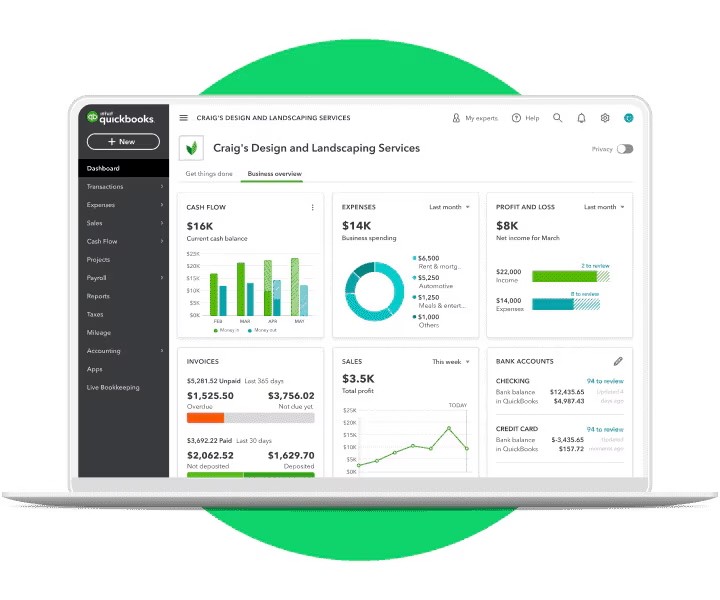
Cash flow updates in real time
Financial reports stay accurate
This guide explains exactly how to connect your bank account to QuickBooks, how bank feeds work, and best practices contractors should follow.
What Is QuickBooks Bank Feed Integration?
Bank feeds are a feature inside QuickBooks Online that securely connects your bank or credit card account to your bookkeeping software.
Once connected, QuickBooks will:
Download transactions automatically
Suggest expense categories
Match payments to invoices
Keep your books updated daily
This removes the need for manual data entry and significantly reduces bookkeeping errors.
For contractors who deal with fuel, materials, travel, tools, and subcontractor payments, automated bank feeds make tracking expenses far easier.
Why Contractors Should Connect Their Bank to QuickBooks
Contractors often deal with frequent transactions such as:
Fuel purchases
Tool purchases
Material costs
Travel expenses
Software subscriptions
Without bank feeds, each of these must be entered manually.
Connecting your bank allows QuickBooks to import and organize these transactions automatically.
Key benefits
1. Automated bookkeeping
Transactions download daily so you don't need to enter them manually.
2. Fewer bookkeeping mistakes
Automatic imports reduce the chance of missing or duplicating expenses.
3. Better cash flow visibility
QuickBooks shows real‑time balances and spending trends.
4. Faster tax preparation
Your accountant receives clean financial records at tax time.
5. Easier expense tracking
QuickBooks automatically categorizes common contractor expenses.
What You Need Before Connecting Your Bank
Before linking your bank account to QuickBooks, make sure you have:
Online banking enabled with your financial institution
Your online banking username and password
A QuickBooks account set up
The correct accounts created in your Chart of Accounts
If online banking is not enabled yet, you will need to activate it with your bank first.
Step‑by‑Step: How to Connect a Bank Account to QuickBooks
Step 1: Log Into QuickBooks Online
Sign into your QuickBooks Online account.
From the left navigation menu select:
Transactions → Bank Transactions
This section displays all imported bank activity.
Step 2: Click "Link Account"
In the banking dashboard, click the Link Account button.
QuickBooks will open a search tool that allows you to find your bank.
Step 3: Search for Your Bank
Enter your bank's name in the search bar.
QuickBooks supports connections with thousands of financial institutions worldwide.
Common Canadian banks include:
RBC
TD
Scotiabank
BMO
CIBC
Once you find your bank, click it and continue.
Step 4: Enter Your Online Banking Credentials
You will be prompted to enter your online banking login information.
QuickBooks uses secure encryption to communicate with your bank and import transaction data.
Your credentials remain protected and are used only to establish the connection.
Step 5: Select the Accounts to Connect
Your bank will display the accounts available for connection.
Common examples include:
Business chequing account
Business savings account
Business credit cards
Match each account to the appropriate Chart of Accounts entry inside QuickBooks.
Example:
Bank Account | QuickBooks Account |
|---|---|
Business Chequing | Business Bank Account |
Visa Credit Card | Credit Card Account |
Click Connect to complete the setup.
Step 6: Import Transaction History
QuickBooks will usually import up to 90 days of historical transactions when connecting for the first time.
These transactions will appear in your For Review tab inside the banking section.
From there you can categorize them.
How to Categorize Imported Transactions
Once transactions are imported, you need to review and categorize them.
QuickBooks may suggest categories automatically, but it is important to confirm them.
Common contractor expense categories include:
Transaction | Suggested Category |
|---|---|
Gas or diesel | Vehicle expense |
Tools | Equipment or supplies |
Materials | Cost of goods sold |
Software | Subscriptions |
Hotels | Travel expense |
Correct categorization ensures your financial reports remain accurate and helps identify legitimate tax deductions.
Using Bank Rules to Automate Bookkeeping
QuickBooks allows you to create bank rules that automatically categorize transactions.
Example rule:
If description contains "Shell"
Automatically categorize as Vehicle Expense.
Rules can dramatically reduce bookkeeping work, especially for contractors with frequent purchases.
Learn more about creating bank rules here:
What to Do If Your Bank Can't Connect
Some smaller financial institutions may not support direct connections.
If this happens, you can manually upload transactions using a CSV file downloaded from your bank.
QuickBooks explains how to do this here:
Manual imports still allow you to categorize and track transactions efficiently.
Common QuickBooks Bank Feed Problems
Bank connection keeps disconnecting
Some banks require periodic authentication for security reasons.
Simply reconnect the bank feed by logging back into your bank through QuickBooks.
Duplicate transactions appearing
Duplicates may occur if transactions are imported manually while the bank feed is active.
QuickBooks allows you to exclude duplicates before adding them to your books.
Transactions not importing
Occasionally banks experience connection outages.
Refreshing the bank connection or reconnecting the account typically resolves the issue.
Security: Is Connecting Your Bank to QuickBooks Safe?
QuickBooks uses bank‑level encryption and security protocols to protect your financial data.
Your banking credentials are encrypted, and QuickBooks connects using secure financial data aggregation technology.
Millions of small businesses worldwide rely on QuickBooks bank feeds for automated bookkeeping.
Best Practices for Contractors Using QuickBooks Bank Feeds
Review transactions weekly
Checking transactions regularly prevents bookkeeping backlogs.
Separate business and personal finances
Maintaining a dedicated business account simplifies bookkeeping and improves tax accuracy.
Attach receipts to transactions
QuickBooks allows you to upload receipts directly to expenses, helping keep records organized.
Reconcile accounts monthly
Monthly reconciliation ensures your QuickBooks balance matches your bank statement.
Why Clean Bookkeeping Matters at Tax Time
When your bank feeds are connected and transactions are categorized correctly:
Your accountant can prepare taxes faster
Financial reports remain accurate
Business deductions are easier to identify
For contractors, organized bookkeeping often leads to lower stress and fewer surprises during tax season.
When to Get Help With QuickBooks Setup
While QuickBooks is powerful, improper setup can lead to bookkeeping errors.
Working with a professional ensures:
Accounts are structured correctly
Transactions are categorized properly
Financial reports are reliable
If you are unsure whether your QuickBooks system is set up correctly, Contractor Tax Hub can help review your books and ensure everything is organized properly.
Final Thoughts
Connecting your bank account to QuickBooks is one of the best steps you can take to automate your bookkeeping.
Once connected, transactions import automatically, expenses are easier to track, and financial reports stay up to date.
For contractors and small businesses, this simple integration can save dozens of hours each year while improving financial accuracy.
Frequently Asked Questions
Can QuickBooks connect to Canadian banks?
Yes. QuickBooks supports connections with most major Canadian banks including RBC, TD, Scotiabank, BMO, and CIBC.
How often do bank transactions update?
Most banks update transactions daily, though some may refresh multiple times per day.
Is it safe to connect my bank to QuickBooks?
Yes. QuickBooks uses secure encryption and financial data protection systems similar to those used by banks.
Can I disconnect my bank later?
Yes. Bank connections can be removed at any time without affecting previously recorded transactions.
Need help setting up QuickBooks or cleaning up your bookkeeping?
The team at Contractor Tax Hub specializes in helping contractors streamline bookkeeping and stay tax‑ready year‑round.